
November 26, 2026 · 3 min read
Installing IPTV Smarters Pro on Android Phones and Tablets
Prepare your Android phone or tablet for IPTV Smarters Pro, choose an official APK source, and get your playlist or login details ready.
1. Understand what you are installing
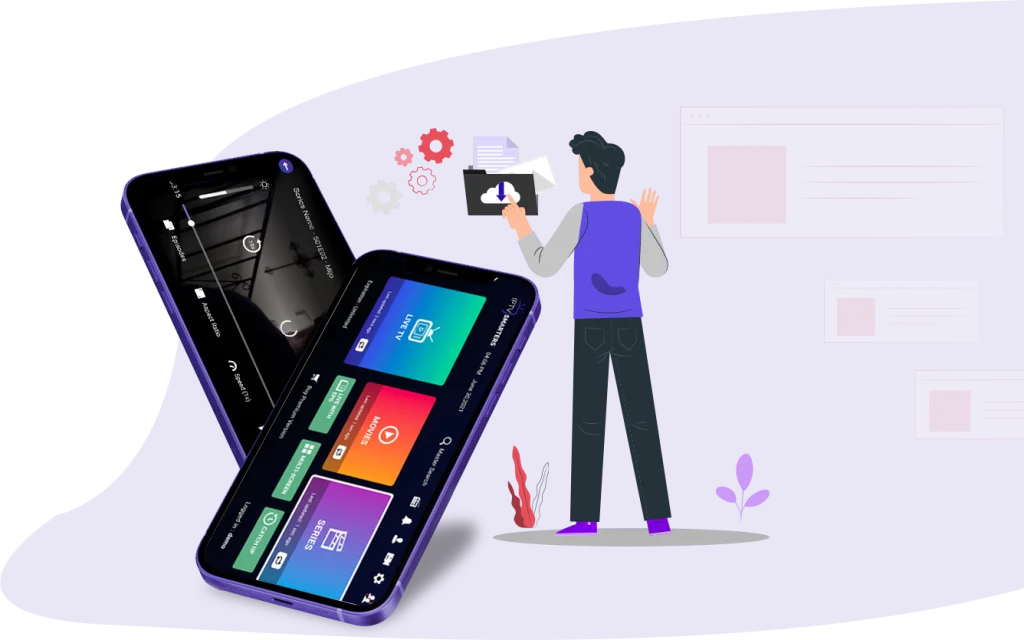
IPTV Smarters Pro is a media player application that supports Android phones and tablets. It can work with M3U playlists and Xtream Codes login details, so your first task is to find out which of these your service provides. Treat installing the player and preparing your access details as two separate steps.
This guide focuses on preparing your device, choosing an APK source carefully, and having the right information available when you open the app. Do not assume that installing a media player guarantees access to any particular channels; check the service information separately.
2. Prepare your phone or tablet
Before starting, keep your Android device and the information supplied by your service close at hand. Read through the installation instructions before downloading anything, especially if you are following them on the same phone you plan to use for playback.
For a separate walkthrough, consult the installation guide. Follow instructions that apply to your device rather than relying on a screenshot with matching button names. This guide does not specify an Android version requirement or exact menu labels, so avoid treating either as confirmed here.
3. Choose the official APK source carefully
If you are installing through an APK, verify the source before downloading. Look for a download clearly attributable to the application's official publisher, rather than choosing a file solely because its name includes “IPTV Smarters Pro.” A familiar app name alone is not enough to establish where a file came from.
No verified official APK address is provided here, so this guide does not recommend a specific download URL. If you cannot establish that a source is official, pause instead of guessing. Avoid treating claims about bundled channels, special editions, or compatibility as verified facts.
4. Get your playlist or login details ready
Check whether you have an M3U playlist or Xtream Codes login details. Keep the information exactly as your service supplied it, and use the corresponding setup method when configuring the player. Do not try to substitute one format for the other or guess missing details.
If you are still choosing a service duration, review the plans and pricing. The site offers 3, 6, 12, and 24 month plans, with 24/7 WhatsApp installation support. Use that support when you need installation help or clarification about the information required for setup.
5. Explore the player after setup
Once configured, IPTV Smarters Pro supports an Electronic Program Guide (EPG), multiple playlists, favourites, and parental controls. Start with the playlist you intended to add, then explore the features relevant to how you watch.
Favourites and parental controls are useful features to review before making the device part of your everyday viewing routine. If you plan to use multiple playlists, keep their associated setup information organised so you can distinguish them when seeking help.